
NEWS
Search Updates Now Available
Get up to speed on the new updates released to Search and Contacts in Bright.
We just released several improvements to Search—making it easier for you to manage your clients’ MLS activity in Bright and jump to your most recent properties of interest.
Updates to Contacts
Your Contacts, located underneath the Clients menu, now displays the contact Status and Filter options in one place—at the top of Contacts page for easier access.
Simply click the Options >> next to Contacts to view your clients based on their status, or filter according to their auto email and portal activity.

A larger, more descriptive Actions button has replaced the Action bar icon. This button gives you the same sorting options as before, plus the ability to Select All or Clear All the contacts you have stored in Bright.
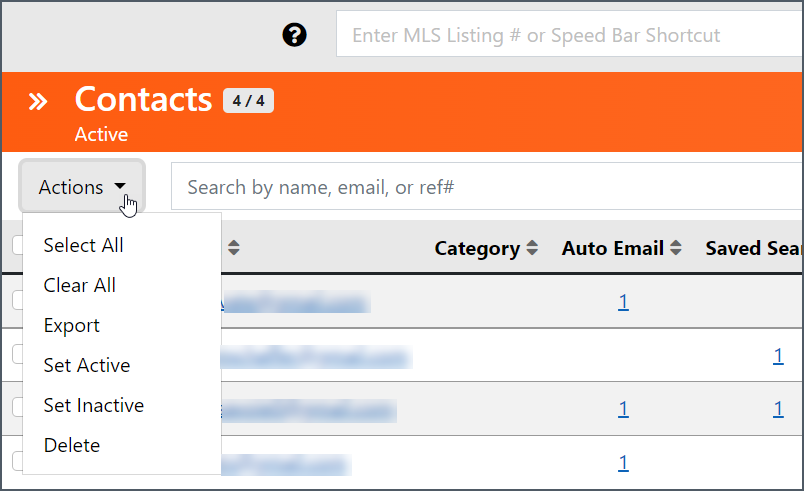
In addition to replacing the client portal icons in the column headers with their portal activity name, you will notice:
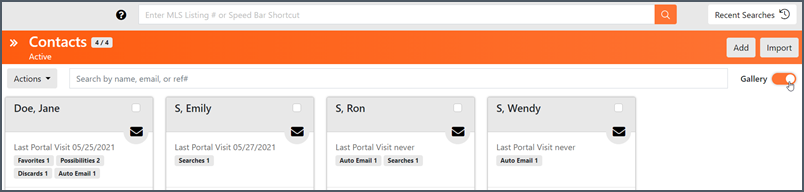
- Add and Import buttons are separated so you can quickly create or upload additional contacts in Bright.
- The toggle button is now displayed next to the Speed Bar and is titled Gallery, making it easier to find and see your list of contacts in a Gallery view.
Recent Searches
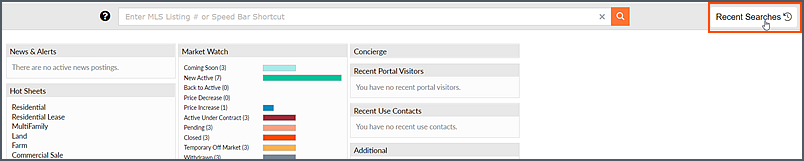
The Recent Searches link that is currently available next to the Speed Bar in Search, is now larger and accessible via a button, so you can easily find and jump to the last listings you searched.
Need live training on harnessing the power of Search in Bright?
Register for one of our upcoming webinars.
Schedule a time to Connect with a Customer Success Coach.